
Brother MFC-J6530DW Driver Download and Software
Brother MFC-J6530DW Driver for Windows, Mac, and Wireless Setup – The Brother MFC-J6530DW is a high-performance all-in-one inkjet printer that offers printing, copying, scanning, and faxing capabilities, all within a single device. It is designed to handle the demands of small offices and workgroups, providing efficient and reliable performance.
The printer boasts impressive print speeds of up to 22 pages per minute (ppm) for monochrome and color documents, ensuring fast and efficient printing of your important materials. It supports automatic duplex printing, enabling you to print on both sides of the paper without any hassle. This feature helps reduce paper usage and saves valuable resources, making it an environmentally friendly choice.
Equipped with a large 250-sheet paper tray, the Brother MFC-J6530DW allows for extended periods of uninterrupted printing. Additionally, it supports versatile paper handling, accommodating a variety of paper sizes up to 11″ x 17″ (Ledger/A3). This flexibility makes it suitable for printing marketing materials, presentations, spreadsheets, and other professional documents.
The MFC-J6530DW features a user-friendly 2.7-inch color touchscreen display, which simplifies navigation and makes it easy to access various functions. The intuitive interface allows you to customize settings, select different print options, and preview your documents before printing.
This Brother printer integrates wireless connectivity, allowing you to print directly from your mobile devices using AirPrint, Google Cloud Print, Brother iPrint&Scan, or Wi-Fi Direct. You can conveniently send print jobs from your smartphone or tablet without the need for a computer, enhancing productivity and workflow efficiency.
Furthermore, the MFC-J6530DW supports wired connections such as Ethernet and USB, providing additional flexibility for various networking setups. You can easily connect the printer to your office network or directly to a single computer, ensuring seamless integration with your existing infrastructure.
The scanner function of the Brother MFC-J6530DW delivers impressive results with its 50-sheet automatic document feeder (ADF) and flatbed scanning capabilities. Whether you need to digitize multiple-page documents or scan delicate materials such as photos or books, this printer offers versatility and high-quality scans.
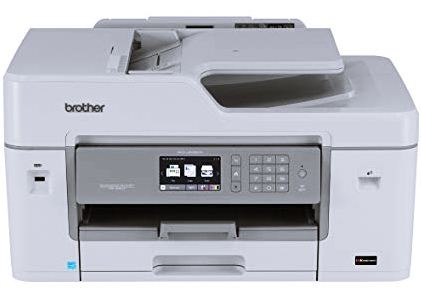
Brother MFC-J6530DW
Brother MFC-J6530DW Wireless Setup
A. Factory Reset
- First, hit the menu button on your machine.
- Then, use the bottom-up button to find the network menu. And then, hit ok.
- After that, choose factory reset, and then hit ok.
- Next, select number 1 (If your printer has a fax button. Otherwise, follow the instruction on the screen).
- Your printer is going to reset the network automatically.
- Then, you should do a wizard setup to activate the wireless.
- Continue by pressing the menu button by using the bottom-up button to find “network” and ok.
- Choose “WLAN”. Then, press ok.
- Select “setup wizard”, and then wait for a moment. Your machine is searching for the SSID. Once this process is done, hit back.
- After completing the steps, the Wi-Fi icon will appear at the top of the screen.
B. Setting on Computer
- Insert the CD driver.
- Select the language.
- Next, choose the “initial installation” menu
- Then, select “Install MFL-Pro Suite”
- Select yes and wait for a moment.
- After that, continue by choosing a wireless network connection. Then, choose next.
- Check all the options and choose next.
- If your Wi-Fi has detected the printer, choose the printer and select next until a pop-up message shows and instructs you to restart your device.
- On the other hand, if your Wi-Fi does not detect it, choose the second option that identifies your machine by address.
- Fill your IP address in your computer on the blank column.
- Here, you can check the IP address in your computer: choose menu > network> Wlan> TCP/IP> IP address.
- If you have completed the process, your computer will process it immediately until you get a message “Brother Registration”. After that, choose next and restart your computer.
C. Setting on Wireless Network Connection
- On your PC/ network, search for Wireless Network Connection
- After that, choose “SETUP” in the option. Choose the wireless network and select Connect
- Next, choose “Connect Anyway” and wait for a moment until you see that your wireless is connected.
Brother MFC-J6530DW Wifi Setup
- You have to check that your printer is on.
- Go to the Network menu selection > Reset Network > Press no.1 (to restart the printer)
- After that, the machine will enter the Default Printer mode
- You have to choose Network > Setup Wizard so you can continue the process.
- Then, choose SSID > and then choose NEW SSID (The machine will ask you to create a username and password). After that, press OK
- Next, choose AD-HOC and connect it to the SSID you have created (The printer will print the printer status automatically. After that, wait for 1 to 5 minutes so the printer will connect via scan IP address)
- Your Wi-Fi setup installation is complete. After that, try to connect your laptop or computer to the SSID printer.
Installations Brother MFC-J6530DW Driver Setup Without CD/DVD
Brother MFC-J6530DW Installation Software for Windows
- To start, you must download the Brother MFC-J6530DW driver. After that, select the system operation of your computer.
- Next, double-click the file you have downloaded.
- After that, choose Unzip
- Open that folder
- Then, double-click on the D_SETUP.exe. The installation is ready to start.
- You are going to see the instructions on the screen. Follow the steps to finish the installation.
- Once the installation is complete, restart your computer. You can test your printer.
Brother MFC-J6530DW Installation Software for Mac
- You must download the Brother MFC-J6530DW driver. After that, choose the operating system for your computer.
- Next, double-click on the “xxxxxxxx.dmg” you have downloaded.
- Then, double-click on the “xxxxxxxx.pkg. This is the installer package.
- You have to follow the instructions so you can complete the installation.
- Once you finished the installation, please restart the computer. After that, you can test your printer.
Brother MFC-J6530DW Driver and Software Download
Microsoft Operating System: Windows 11, Windows 10 32-bit, Windows 10 64-bit, Windows 8 32-bit, Windows 8 64-bit, Windows 8.1 32-bit, Windows 8.1 64-bit, Windows 7 32-bit, Windows 7 64-bit, Windows Vista 32-bit, Windows Vista 64-bit, Windows XP 32-bit, Windows XP 64-bit.
Brother MFC-J6530DW Driver Windows 64 Bit → Download
Brother MFC-J6530DW Driver Windows 32 Bit → Download
Macintosh Operating System: macOS 13 (Ventura), macOS 12 (Monterey), macOS 11 (Big Sur), macOS 10.15 (Catalina), macOS 10.14 (Mojave), macOS 10.13 (High Sierra), macOS 10.12 (Sierra), OS X 10.11.x (El Capitan), OS X 10.10.x (Yosemite)
Brother MFC-J6530DW Driver Macintosh → Download
Brother MFC-J6530DW Printer Manual → Download
Download Driver Brother MFC-J6530DW → Brother Printer Official
