
Canon PIXMA TS3320 Driver Download and Software
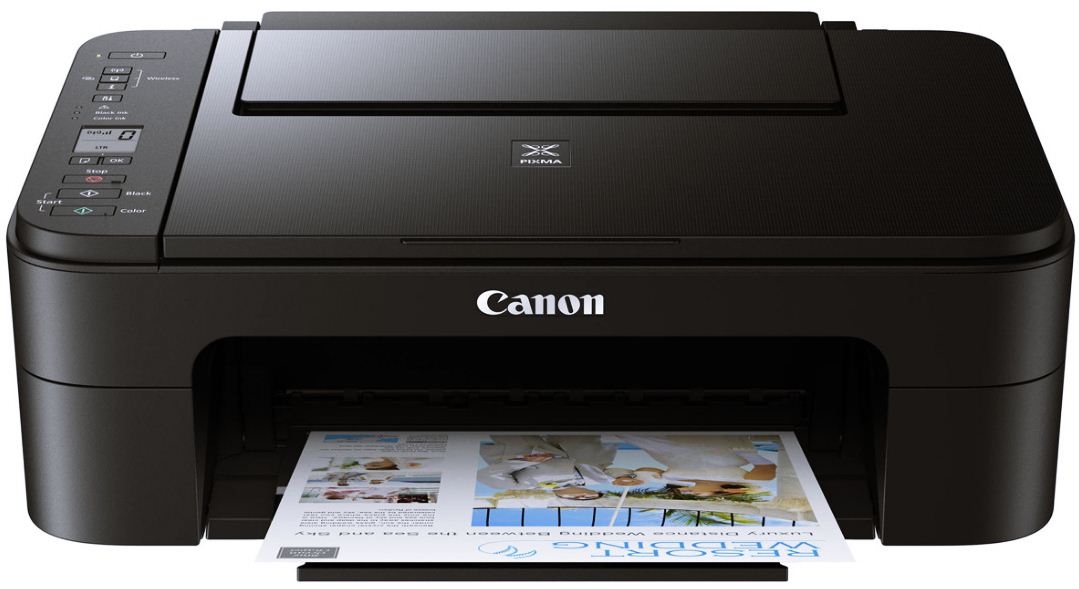
Canon PIXMA TS3320 Driver Windows, Mac, and Wireless Setup – The Canon PIXMA TS3320 is a compact all-in-one inkjet printer designed for home and small office use. It offers an array of features, including printing, scanning, and copying capabilities, making it a versatile and convenient choice for various printing needs.
Key Features and Design
The Canon PIXMA TS3320 boasts a sleek and compact design, making it an ideal fit for any workspace. Its small footprint ensures easy placement even in tight spaces. The printer features a simple control panel with intuitive buttons for quick and effortless operation.
One of the standout features of the PIXMA TS3320 is its wireless connectivity options. It supports Wi-Fi, allowing users to print directly from their mobile devices, laptops, or desktop computers without the need for cables. Additionally, it supports AirPrint, enabling seamless printing from Apple devices, and Mopria Print Service for Android devices.
Print Quality and Performance
When it comes to print quality, the Canon PIXMA TS3320 delivers impressive results. With a maximum print resolution of 4800 x 1200 dots per inch (dpi), it produces sharp and vibrant prints with accurate colors. The printer utilizes a hybrid ink system, combining pigment-based black ink for crisp text and dye-based color inks for vivid photos.
The PIXMA TS3320 offers decent print speeds, with black and white documents printing at approximately 7.7 images per minute (ipm) and color documents at around 4.0 ipm. While it may not be the fastest printer on the market, it delivers reliable performance for everyday printing needs.
Canon PIXMA TS3320 Wireless Setup
- Turn on your Canon PIXMA TS3320 printer.
- Check the power button. If it shows green, it means that the printer is on.
- Next, press the Setup Button on your printer.
- Select the Wireless LAN setup.
- Hit the OK button.
- After that, the wireless connection is on if the blue Wi-Fi lamp lights up.
- Next, wait a minute, the printer is searching for compatible access points automatically.
- See your printer screen display, and choose the method that matches.
- Press the Stop Button if the Push Button Method Screen appeared on your printer, but if you are not sure about the access point or the router.
- To start wireless setup, it can take your time. Your internet connection may become unavailable during the installation.
Canon PIXMA TS3320 Driver Download and Software
| Operating System | Download |
| Canon PIXMA TS3320 Windows 64-Bit Driver Windows 11, Windows 10 64-bit, Windows 8.1 64-bit, Windows 8 64-bit, Windows 7 64-bit, Windows Vista, Windows XP |
Download |
| Canon PIXMA TS3320 Windows 32-Bit Driver Windows 11, Windows 10 32-bit, Windows 8.1 32-bit, Windows 8 32-bit, Windows 7 32-bit, Windows Vista, Windows XP |
Download |
| Canon PIXMA TS3320 Driver Mac macOS 13 (Ventura), macOS 12 (Monterey), macOS 11 (Big Sur), macOS 10.15 (Catalina), macOS 10.14 (Mojave), macOS 10.13 (High Sierra), macOS 10.12 (Sierra), OS X 10.11.x (El Capitan), OS X 10.10.x (Yosemite) |
Download |
| Canon PIXMA TS3320 Printer Driver Download | Canon Official Site |
Install Canon PIXMA TS3320 Driver Setup Without Disk
How to install:
- Click to DOWNLOAD,
- Plug In a USB Printer Cable to a Laptop or PC,
- Open the Downloaded File,
- Continue to Follow the Installation Instructions,
- Reboot Your PC or Laptop,
- Then Test Print
How to uninstall:
- Open the Control Panel,
- Click uninstall the program,
- Double-click on the drivers that will Uninstall, then click yes/ok,
- Follow until the uninstall wizard is complete and click Finish.
